
CPU, memory, and disk
In short
You set the CPU cores, memory, and disk size given to a VM when you create it, and can change them later while the VM is shut down. Any OS only lets you choose within a range your Mac can handle reliably.
What you can choose
| Item | Windows 11 | Ubuntu | Maximum |
|---|---|---|---|
| CPU | Min 2 · recommended 4 cores | Min 1 · recommended 4 cores | Mac's core count − 2 |
| Memory | Min 4 · recommended 8 GB | Min 2 · recommended 4 GB | 75% of Mac memory |
| Disk | Min 64 · recommended 80 GB | Min 16 · recommended 32 GB | 512 GB, within the Mac's free space |
The maximum is a safety limit that leaves the Mac its own share. At the top of the Hardware screen, This Mac's resources shows this Mac's free CPU, memory, and disk space, along with the Safe allocation maximum.
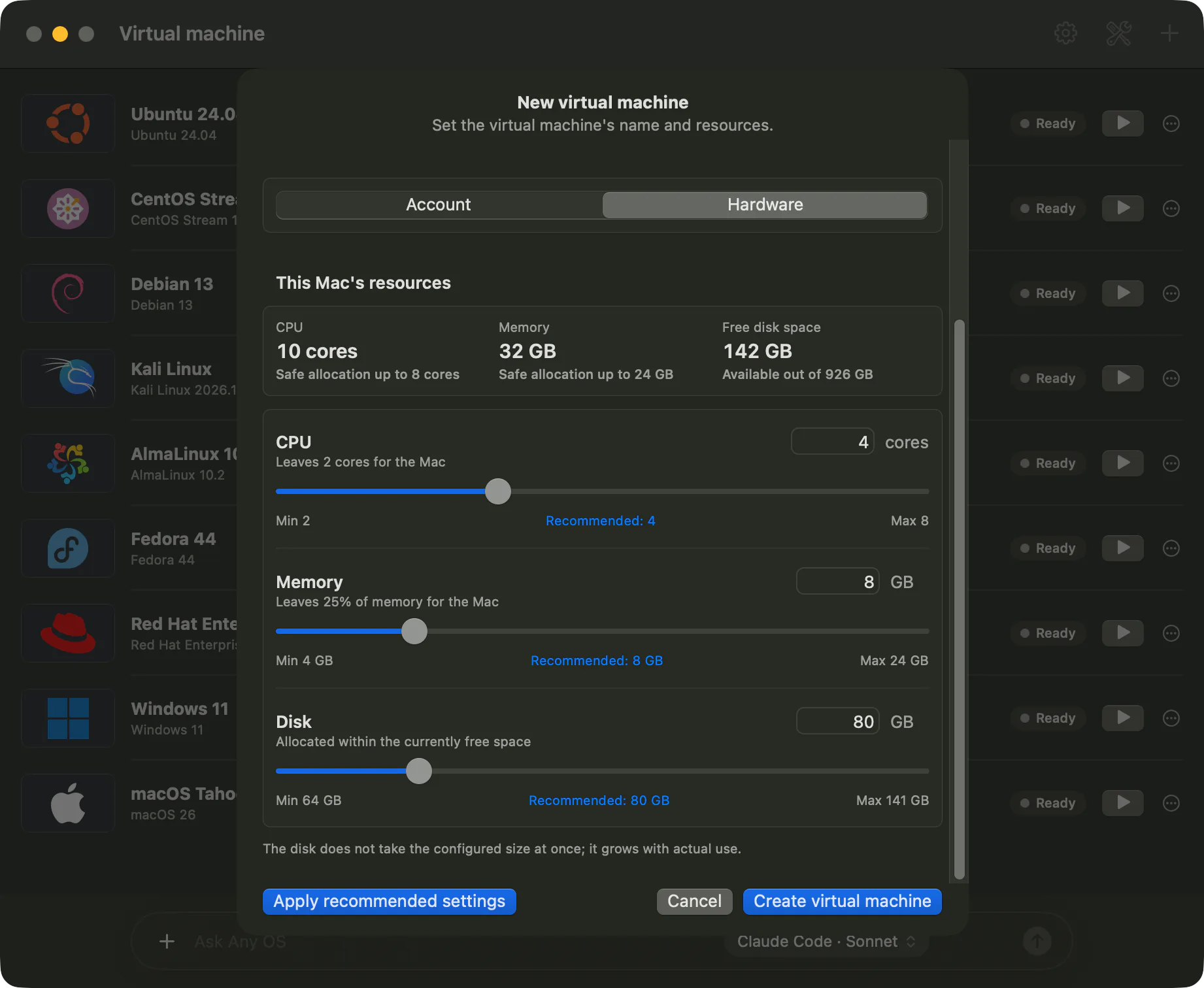
Recommended settings
Choosing a system fills in values recommended for the OS and this Mac. After you change them, click Apply recommended settings on the Hardware screen to return to the recommended values. The recommended values are enough for most people. For heavier work like gaming or development builds, try raising the CPU and memory.
Disk space
- The disk doesn't take up its full set size right away. it grows only as much as it's actually used.
- A disk can only be enlarged, never shrunk.
- After enlarging it, you need to extend the partition inside the VM before the extra space shows up (Disk Management on Windows, Disks on Ubuntu).
Changing it later
- 1.
Shut downthe VM. Hardware can't be changed while it's running. - 2.Click
Settingson the card and open theHardwaretab. - 3.Change the values and click
Save. It applies from the next start.
If something goes wrong
The CPU, memory or disk value is outside what this Mac allows.. Choose a value inside the slider's range.Not enough space. Free up space on the Mac's disk beyond the OS's minimum size, then try again.- If a VM feels slow, see The VM feels slow.
Still stuck?
Search the Help Center by symptom or contact our support team.