
Quick start
Works onWindowsUbuntuUpdated 2026-09-23
In short
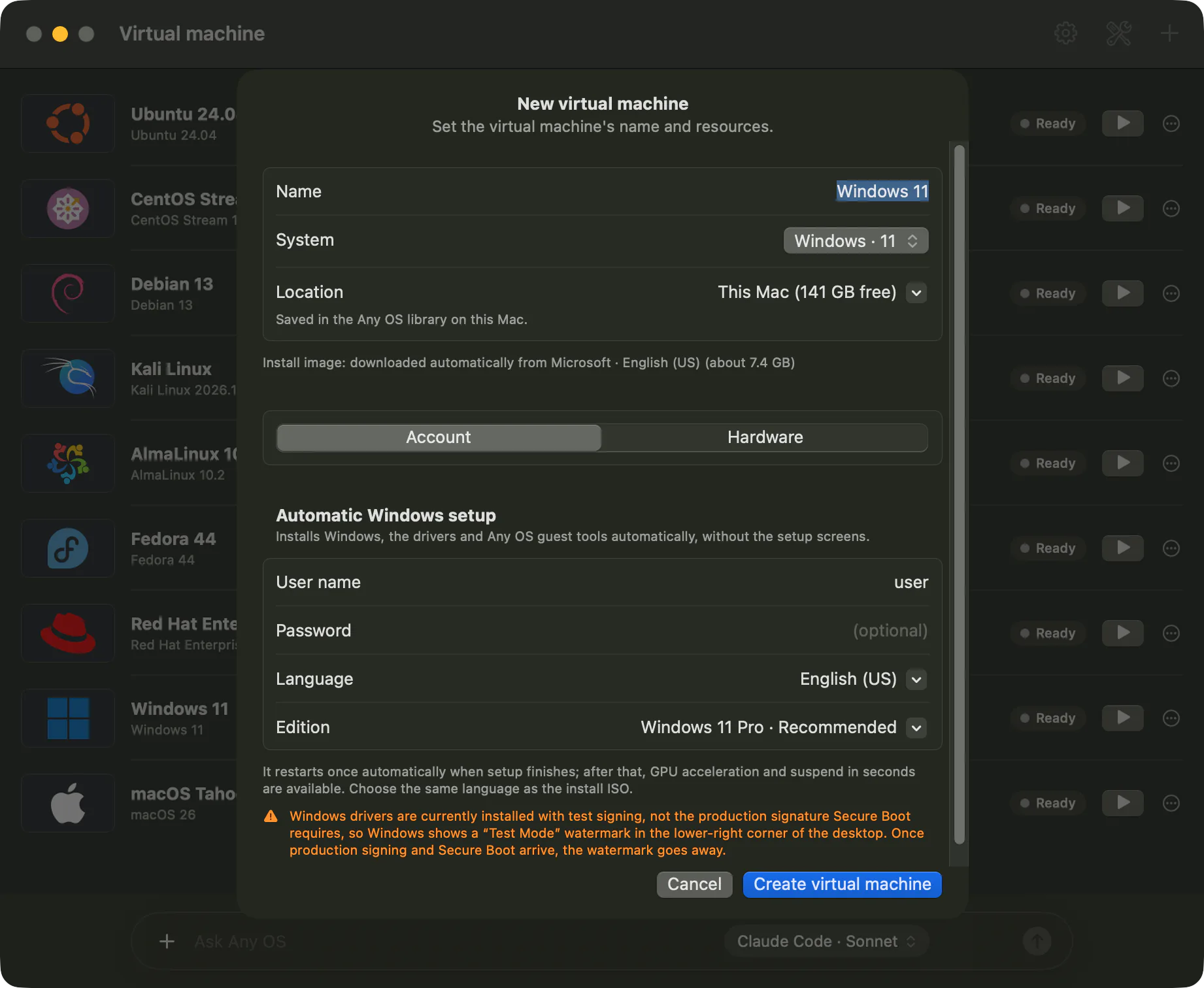
Choose Windows 11 in New Virtual Machine and enter a user name, and Any OS handles everything from downloading the install image to finishing the Windows install.
Create a Windows 11 VM
- 1.Click
New Virtual Machineat the top right of the manager screen. - 2.Click
System, openWindows, and choose the Windows 11 entry. - 3.On the
Accounttab, check theUser nameunderAutomatic Windows setup, and set aPasswordandLanguageif you need to. - 4.The CPU, memory, and disk already hold values recommended for this Mac. To change them, open the
Hardwaretab. - 5.Click
Create virtual machine.
Waiting for setup to finish
A VM card appears in the list with a progress state. After the install image (about 7.4 GB) downloads, the VM is created and Windows installs automatically. It restarts once on its own when setup finishes.
- The state moves from
Downloading→Installing Windows→Finishing setup. - You can open the VM window to watch the progress while it installs. There's no need to use the keyboard or mouse.
Using it
- 1.Click
Open Screen(orStartif it's off) on the card to open the VM window. - 2.Resize the window and the Windows resolution changes along with it.
- 3.To take a break, click
Suspendon the card. Next time, clickResumeto pick up on the same screen. - 4.When you're done, click
Shut downon the card.
Starting with Ubuntu instead
For Ubuntu, the app also downloads the official ARM64 install image and creates the VM. Follow Create an Ubuntu VM for the steps.
Related Articles
Was this article helpful?
Still stuck?
Search the Help Center by symptom or contact our support team.