
Managing your VM list
Works onWindowsUbuntuUpdated 2026-10-26
In short
The manager screen collects the VMs stored on this Mac as cards. Each card shows its state, and actions like starting, suspending, opening settings, and checkpoints all happen right from the card.
Manager screen layout
Virtual machines are listed one per row. Each row has a preview, the name, the operating system and version, the status, the main button, and the … menu.
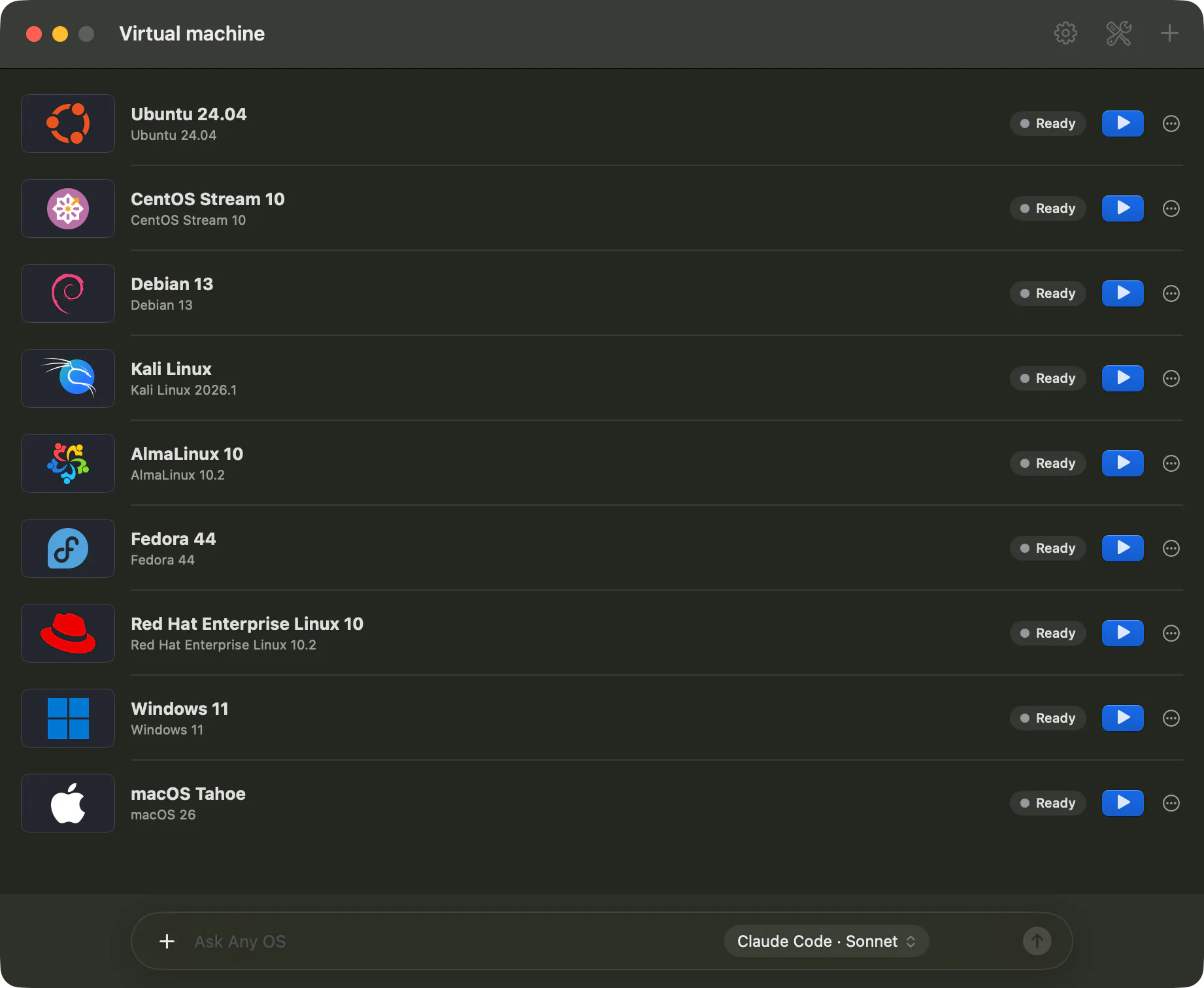
Card states
| State | Meaning |
|---|---|
Ready | It's off. Click Start to turn it on. |
Running | It's on. Click Open Screen to open the VM window. |
Suspended | Its work state was saved to disk and it turned off. Click Resume to come back to the same screen. |
Paused (memory kept) | Another program froze it, and it is still using memory. Click Resume, then Suspend, to give the memory back. |
Preparing · Downloading · Failed | The Windows install image is downloading, or it failed to download. |
Waiting to install · Installing Windows · Finishing setup | Steps in automatic Windows setup. |
Needs attention · Status check needed | Something went wrong, or the state couldn't be read. Check the Logs. |
Card buttons
| Button | What it does |
|---|---|
Start / Resume | Turns the VM on and opens the VM window. |
Open Screen | Reopens the window of a running VM. |
Suspend | Saves its work state to disk and stops it. Suspend and resume |
Resume | Continues a VM that shows Paused (memory kept). |
Check status | Shows whether Any OS Tools inside the VM is responding, and its version. |
Any OS Tools… | Installs or updates Any OS Tools. |
Checkpoints | Saves a restore point for a shut-down VM and restores it as a new VM. |
Settings | Configures general, hardware, display, sound and camera, network, sharing, CD/DVD, checkpoints, and AI agents. |
Eject install image | Removes the install image attached to a shut-down VM. |
Logs | Opens this VM's log folder in the Finder. |
Shut down | Asks the VM to power off. |
Changing the name and notes
Change the name shown in the list (1–80 characters) and the notes (up to 2000 characters) under Settings › General. You can change these while it's running too.
Deleting a VM
- 1.
Shut downthe VM. A running VM can't be deleted. - 2.Open
Settings›General. - 3.Type
Delete nowin the field and clickDelete this virtual machine.
The disk, checkpoints, saved suspend state, and logs are all deleted and can't be recovered. Move any files you need to the Mac first.
Use Open Folder on the same screen to open the folder holding the VM's files in the Finder.
Related Articles
Was this article helpful?
Still stuck?
Search the Help Center by symptom or contact our support team.