
Connecting USB devices
In short
Pass a USB device plugged into the Mac to the virtual machine and use it with the driver inside. You can be asked every time you plug one in, or set a fixed destination per device.
Connecting and disconnecting a device
- 1.Start the virtual machine and open the VM window.
- 2.Open the
Devices › USBmenu in the VM window to see the USB devices plugged into the Mac. - 3.Click a device to pass it to the virtual machine. Click again to return it to the Mac.
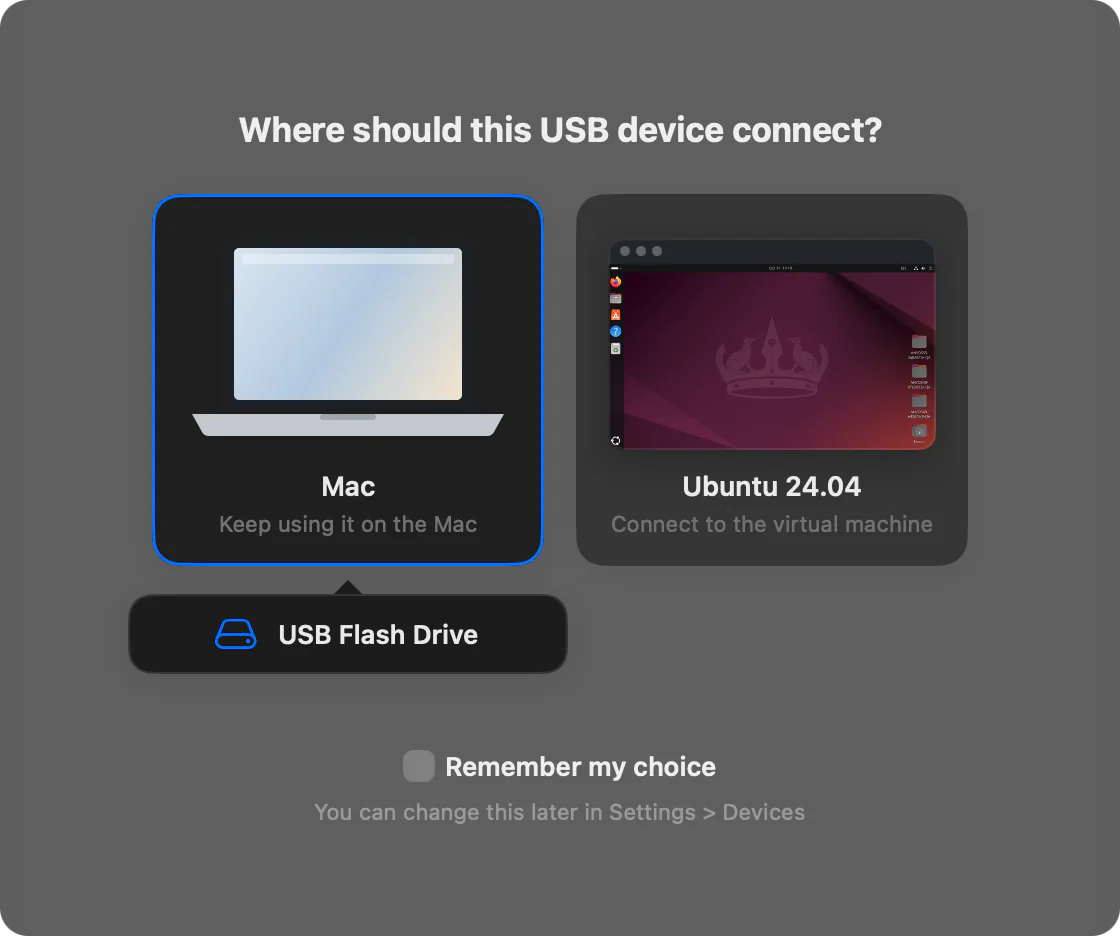
When you plug in a new device
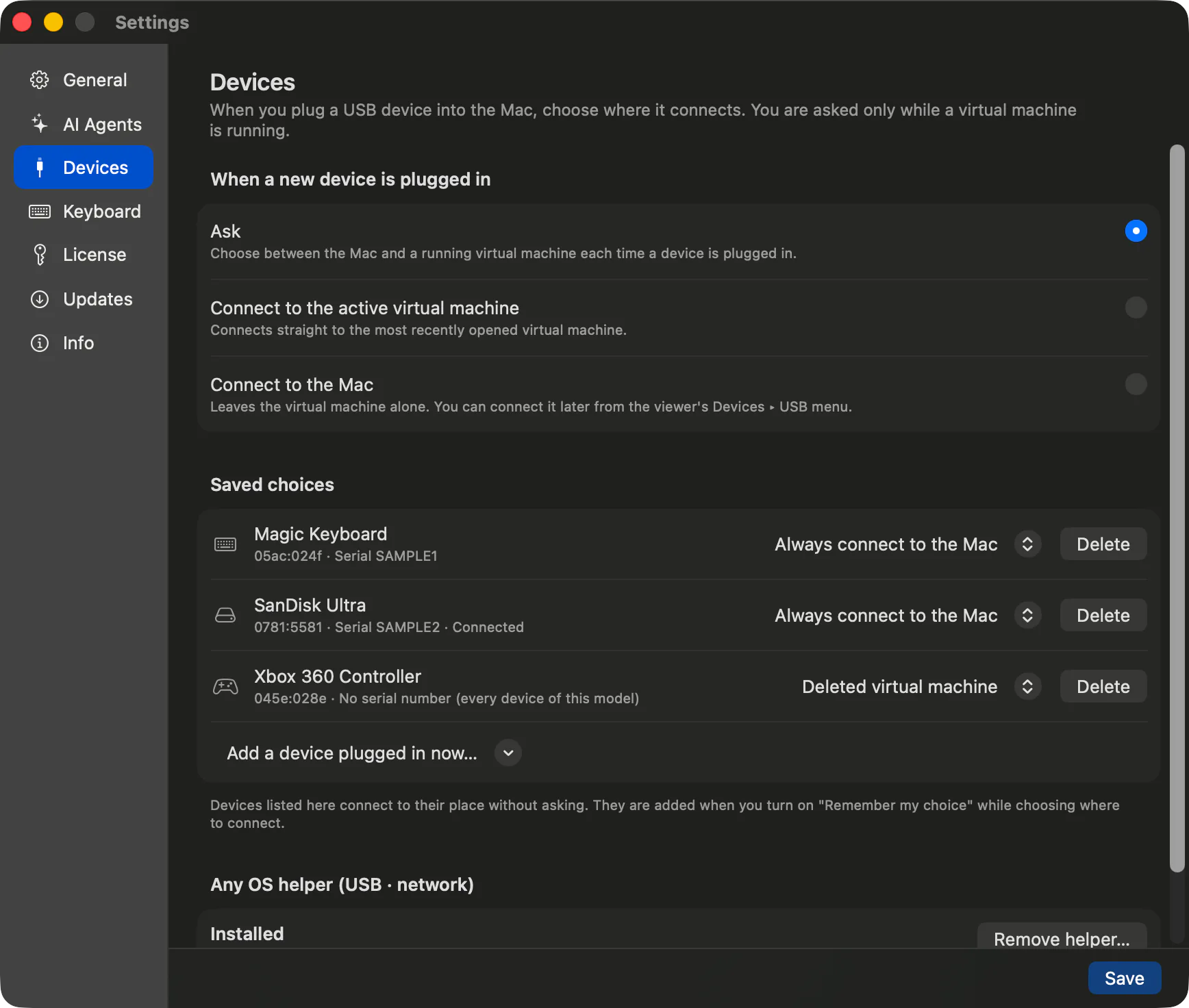
Under When a new device is plugged in in app settings › Devices, decide where a new device connects when it's plugged in while a virtual machine is running.
| Choice | What it does |
|---|---|
Ask | Choose between the Mac and a running virtual machine each time you plug one in. |
Connect to the active virtual machine | Connects straight to the virtual machine you last opened. |
Connect to the Mac | Leaves the virtual machine alone. You can connect it later from the Devices › USB menu. |
A device registered under Saved choices connects straight to its fixed destination without asking. Turn on Remember my choice when picking a destination, or add one with Add a device plugged in now…. Click Delete in the list to go back to being asked.
Passing through a device the Mac is using
You can pass through devices macOS isn't using, and USB storage (after ejecting it on the Mac), without the helper. A device the Mac is already using. like a phone, tablet, game controller, or a mounted storage device. shows grayed out in the list as (in use by the Mac. needs the USB helper). Passing through devices like these needs the Any OS helper.
- 1.Click
Install helper…next toAny OS helper (USB · network)in app settings ›Devices, or clickDevices › USB › Install USB helper… (administrator password required)in the VM window. - 2.Enter your password in the macOS administrator password prompt. You only need to install it once.
- 3.Once installed, you can connect devices that had shown grayed out too.
Things to know
- Suspending the virtual machine returns connected devices to the Mac; resuming reconnects any that are still plugged in.
- Unplugging and replugging a device follows the rule in app settings ›
Devicesagain. - On Ubuntu, connecting a phone or tablet shows its storage in the Files app.
- Install the device driver inside the virtual machine. A device without an ARM64 driver may not work.
If a device won't connect, see USB device won't attach and iPhone camera / importing photos.
Related Articles
Still stuck?
Search the Help Center by symptom or contact our support team.