
Networking
In short
The default, Shared (NAT), borrows the Mac's internet with no setup needed. Choose Bridged to put the virtual machine on your router as its own device, or Shared with the Mac only to keep the Mac and virtual machine visible only to each other.
Comparing connection modes
| Mode | Internet | Access from the Mac | Other devices on the same network | Helper |
|---|---|---|---|---|
Shared (NAT) (default) | Yes | Only via SSH port forwarding | Can't connect | Not needed |
Bridged | Yes | Directly via the virtual machine's IP | Can find and connect | Required |
Shared with the Mac only | Yes | Directly via the virtual machine's IP | Invisible | Required |
- Shared (NAT). Right for most cases. The virtual machine borrows the Mac's connection and is invisible from outside.
- Bridged. The virtual machine gets its own IP from the router. Use this when a phone or another PC needs to find and connect to the virtual machine (AirPlay, Bonjour, LAN apps like WebRTC, server practice).
- Shared with the Mac only. The Mac and virtual machine see each other on a private network, invisible to other devices. Good for developing against a server on the virtual machine from the Mac.
Changing the connection mode
- 1.Shut down the virtual machine.
- 2.Click
Settingson the VM card and open theNetworktab. - 3.Choose the mode you want under
Connection type. - 4.If you chose
Bridged, choose the interface the Mac uses for internet (Wi-Fi or wired) underMac interface to bridge. - 5.If a helper prompt appears for
BridgedorShared with the Mac only, clickInstall helper…and enter your administrator password. - 6.Click
Saveand start the virtual machine.
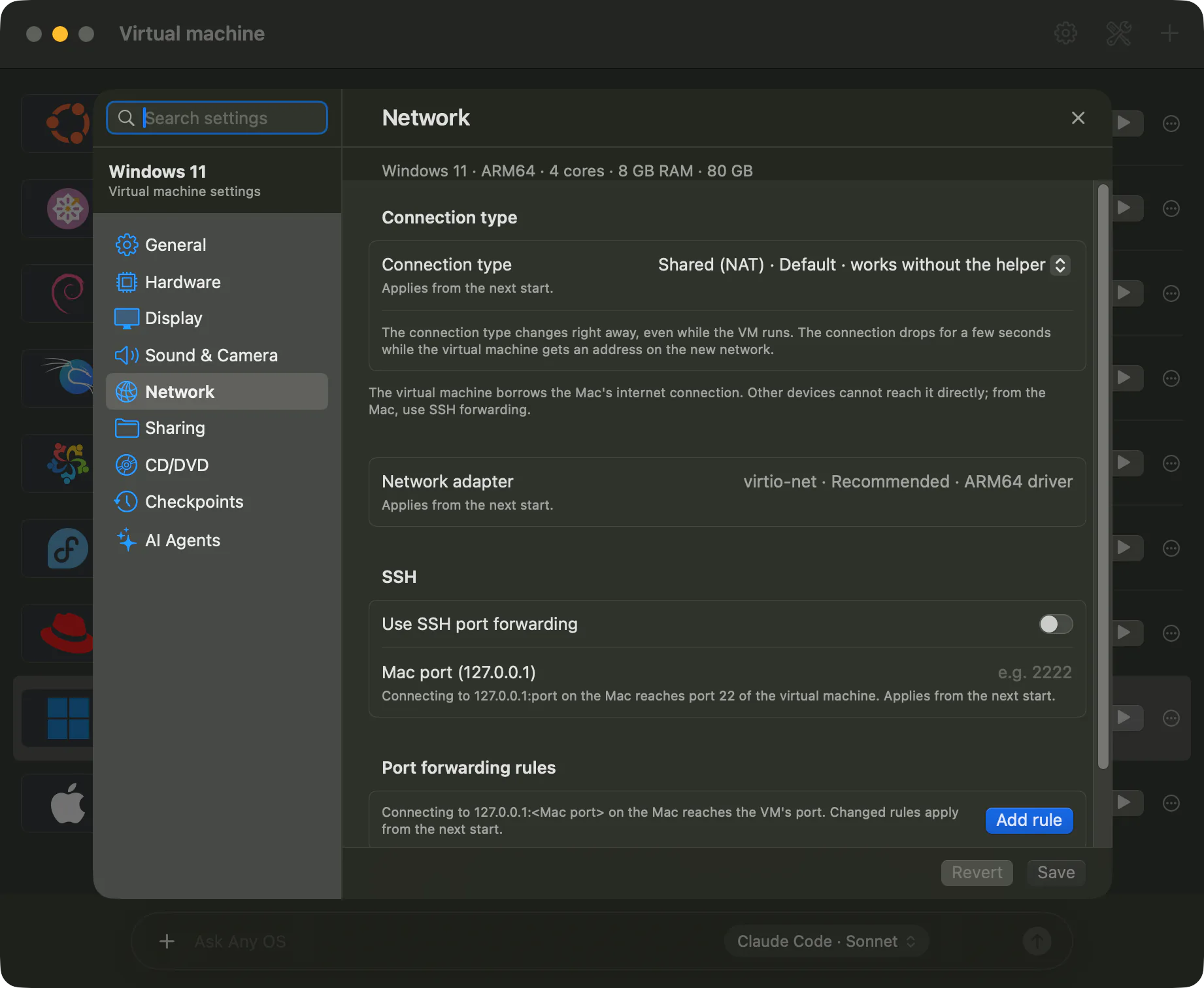
Each virtual machine has a fixed MAC address, so on a bridged network the router always hands out the same IP. The MAC address appears near the bottom of the Network tab.
SSH port forwarding (Shared NAT)
For the Mac to reach the virtual machine over SSH under Shared (NAT), turn on Use SSH port forwarding and enter a port between 1024 and 65535 in Mac port (127.0.0.1). Connecting to 127.0.0.1:<port> on the Mac then reaches port 22 on the virtual machine. The SSH server must be running inside the virtual machine.
Network adapter
Leave Network adapter on the default, virtio-net (recommended). Choose Intel e1000 (compatibility mode) only if the virtual machine has no driver for this adapter.
Things to know
- The first time Windows sees a bridged or Mac-only shared network, it classifies it as a Public network, so it won't answer pings from other devices. Change the network profile to Private in Windows settings if you need to.
- If you switched to Bridged but didn't get an IP, check that
Mac interface to bridgeis the interface currently connected to the internet. - Networking reconnects after suspending and resuming, too.
If something goes wrong, see No internet in the virtual machine and Not getting an IP on Bridged.
Still stuck?
Search the Help Center by symptom or contact our support team.