
Create a Windows 11 VM
In short
Choose Windows 11 and Any OS downloads and verifies the Windows 11 ARM64 install image from Microsoft, then automatically installs Windows, drivers, and Any OS Tools with no install screen to click through.
How to create one
- 1.Click
New virtual machine. The name, system, location, and theAccountandHardwaretabs all appear on one sheet. - 2.Set a
Name. This is the name shown in the list. - 3.Click
System, openWindows, and choose the Windows 11 entry. - 4.On the
Accounttab, fill in theAutomatic Windows setupfields (see the table below). - 5.Set the CPU, memory, and disk. If you're not sure, click
Apply recommended settingson theHardwaretab. - 6.Click
Create virtual machine.
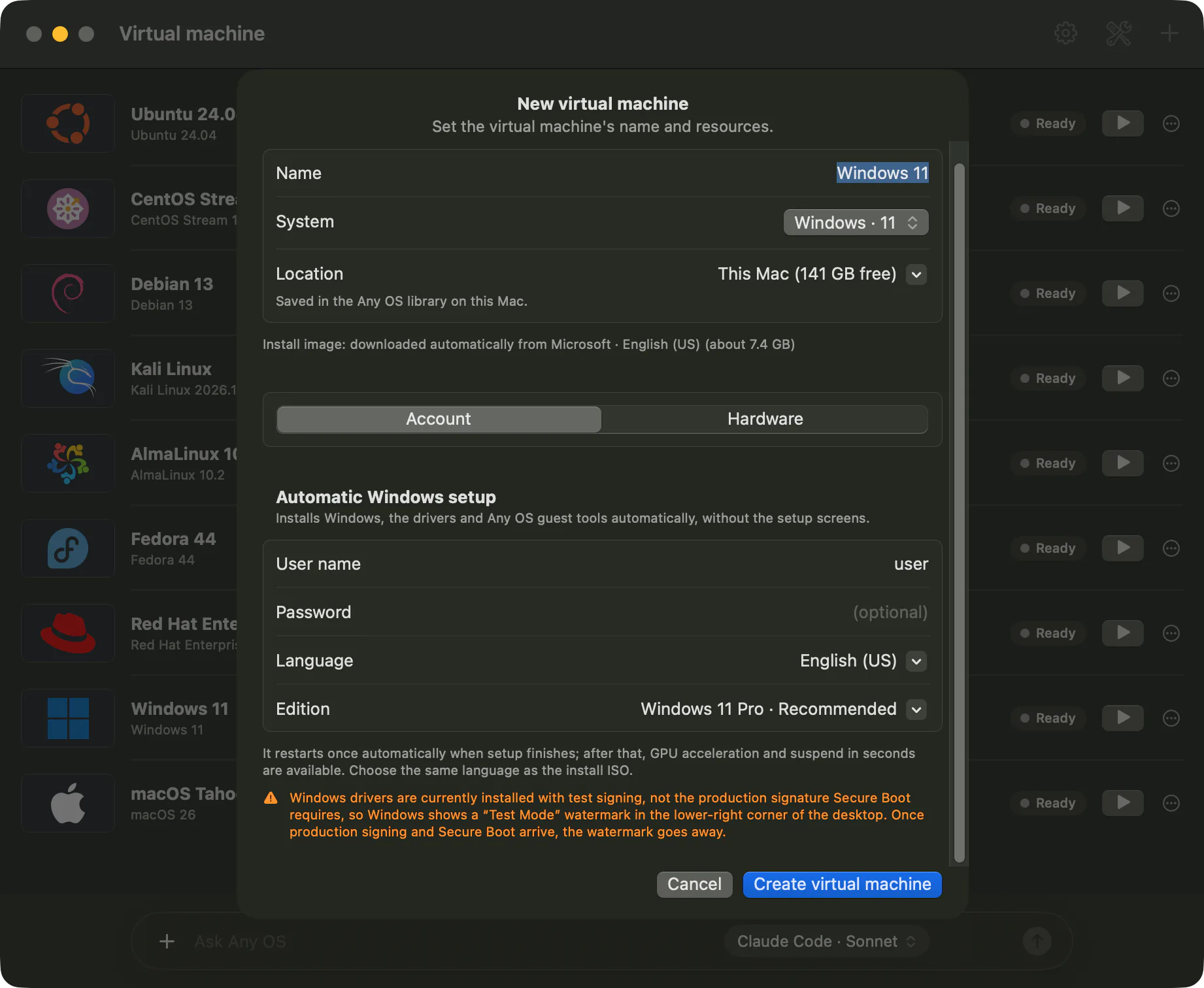
Automatic Windows setup fields
| Field | Description |
|---|---|
User name | The account name created in Windows. It's pre-filled with your Mac user name. Required. |
Password (optional) | Leave it blank to create an account with no password. |
Language | The language of the install image to download, and of Windows itself. It's pre-filled with your Mac's language. |
Edition | Windows 11 Pro (recommended) or Windows 11 Home. |
Download and install progress
Click Create virtual machine and the sheet closes and a progress card appears in the list. The install image (about 7.4 GB) downloads directly from Microsoft, and Any OS verifies it isn't corrupted once it arrives.
| Card state | Meaning |
|---|---|
Preparing | Looking up the install image address at Microsoft, or creating the VM from the downloaded image. |
Downloading | The install image is downloading. A progress bar shows, and you can click Cancel to stop. |
Installing Windows | Windows is installing automatically. |
Finishing setup | Setup finished and it's restarting once with the new configuration. |
Ready / Running | Setup is done. GPU acceleration and suspend are now available. |
Any OS Tools and the Any OS graphics driver install together on the first sign-in. Once it's done, you'll see the notification (VM name) finished installing. GPU acceleration and suspend are now available.
The downloaded install image is kept next to the VM's storage folder and reused the next time you create a VM in the same language.
Good to know
- A Windows VM needs at least 2 CPU cores, 4 GB of memory, and 64 GB of disk. The recommended values are 4 cores, 8 GB, and 80 GB.
- If Microsoft shows a human-verification prompt, that window appears on screen. The download continues once you complete it.
- Quitting the app stops an in-progress download. Trying again resumes from where it left off.
- Windows activation is a separate step through a Microsoft license. See Windows activation.
If something goes wrong
The downloaded file is corrupt. Try again.. ClickTry again.- For other cases, see The Windows download fails.
Still stuck?
Search the Help Center by symptom or contact our support team.