
Resolution and refresh rate
In short
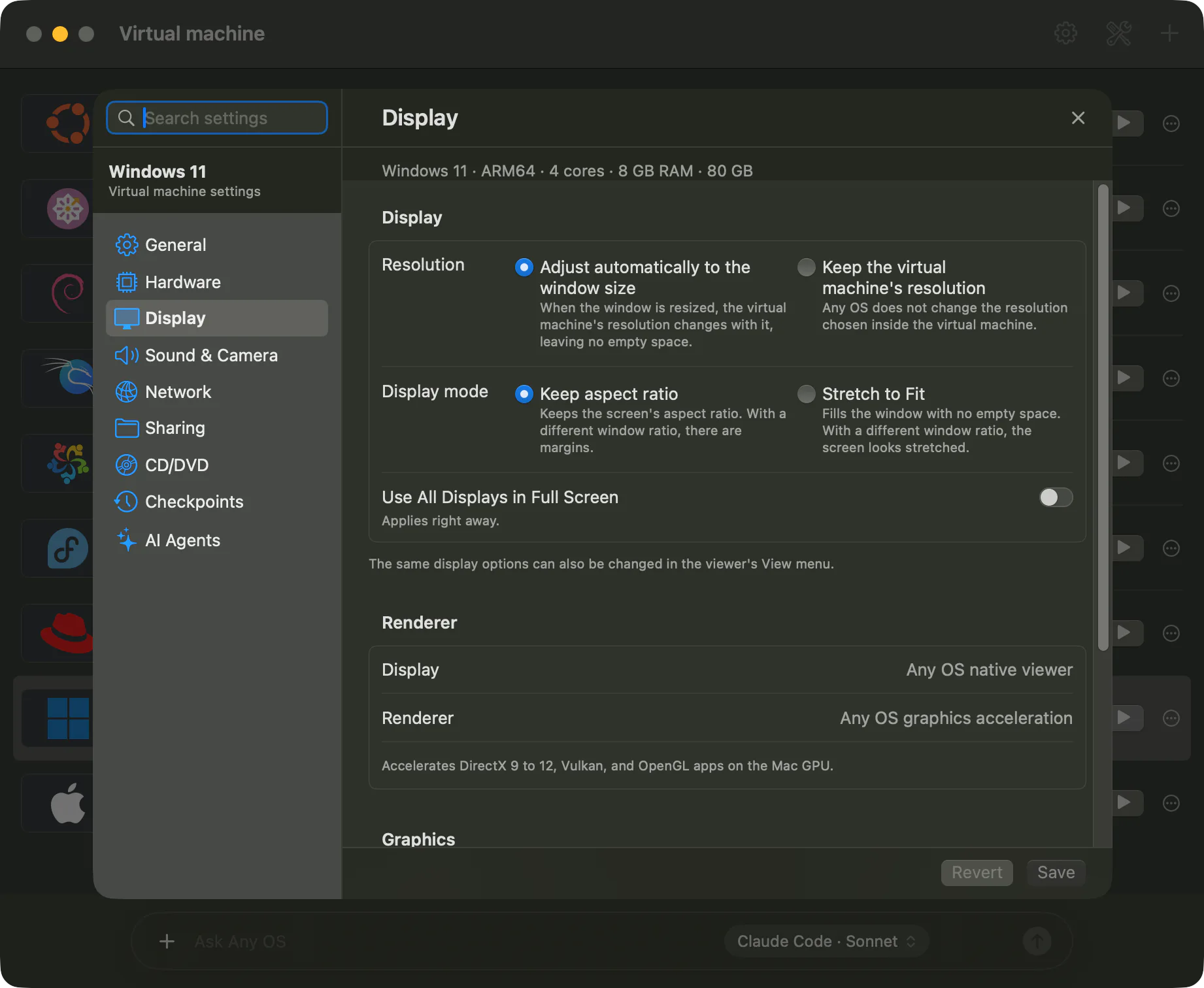
By default, the VM screen's resolution changes to match the window size and is accelerated by the Mac GPU. On Windows, choosing Same as the Mac display runs it at up to 120 Hz on a ProMotion display.
Resolution
| Setting | Behavior |
|---|---|
Adjust automatically to the window size (default) | Resizing the window changes the VM resolution along with it, filling the window with no empty space. |
Keep the virtual machine's resolution | Any OS leaves the resolution you chose inside the VM unchanged. |
When keeping the resolution and the window and screen aspect ratios differ, choose a Display mode. Keep aspect ratio (default) preserves the ratio with some empty space, and Stretch to Fit fills the window but stretches the image.
Change this setting under Settings › Display › Display or from the VM window's View menu. It applies right away.
Refresh rate (120 Hz)
Windows: choose it under Settings › Display › Refresh rate, and it applies from the next start.
| Value | Behavior |
|---|---|
60 Hz (default) | Always runs at 60 Hz. |
Same as the Mac display | Follows the refresh rate of the Mac display the VM window is on. It's 120 Hz on a ProMotion display. Moving the window to a display with a different refresh rate briefly blanks the screen while it switches. |
Same as the Mac display works on a VM with the Any OS graphics driver installed. It's preinstalled on Windows set up automatically by Any OS, and installed via Any OS Tools on other VMs.
Ubuntu: it follows the refresh rate of the Mac display the VM window is on with no extra setting needed. Any OS Tools needs to be installed.
Startup resolution (Windows)
Startup resolution is the screen size right after boot. The default, Match Mac Display, starts at a size based on the connected Mac displays. You can also choose 1920 × 1080, 2560 × 1440, 2560 × 1600, MacBook Pro 14-inch (3024 × 1964), MacBook Pro 16-inch (3456 × 2234), 4K UHD (3840 × 2160), or Custom (width 640–4096, height 480–4096). When you choose a startup size, automatic resolution applies only up to that size. Larger windows enlarge the current guest image.
Text size and scaling
- A new VM starts at a scale that matches the sharpness of the Mac screen. text isn't too small on a Retina display.
- To change the scale, change it inside the VM (Windows: Settings › Display › Scale; Ubuntu: Settings › Display › Scale).
- The scale you choose in Windows stays the same across refresh-rate changes and when moving the window to a different display.
Graphics acceleration
The VM screen is rendered by the Mac GPU. DirectX, OpenGL, and Vulkan apps are accelerated on Windows, and OpenGL and Vulkan apps on Ubuntu. Any OS Tools is required for acceleration.
Good to know
- Automatic resolution in a Windows VM is limited to the size set at startup. Match Mac Display uses the connected displays; choosing a startup resolution sets that size as the limit. If you need a larger size while running, shut down the VM, change its startup resolution, and start it again.
Startup resolutionandRefresh rateare changed while the VM is off.Displaycan be changed while it's running.
If something goes wrong
- If the resolution doesn't match the window, see The resolution looks wrong.
- If a 3D app or game won't run, see A graphics app won't start.
Related Articles
Still stuck?
Search the Help Center by symptom or contact our support team.