
Create an Ubuntu VM
Works onWindowsUbuntuUpdated 2026-09-23
In short
The app downloads the official Ubuntu ARM64 install image and creates the VM, then you install through the Ubuntu installer. Once it's installed, install Any OS Tools to get GPU acceleration and Mac integration.
Preparing
The app downloads and verifies the ARM64 installation image from Ubuntu’s official servers.
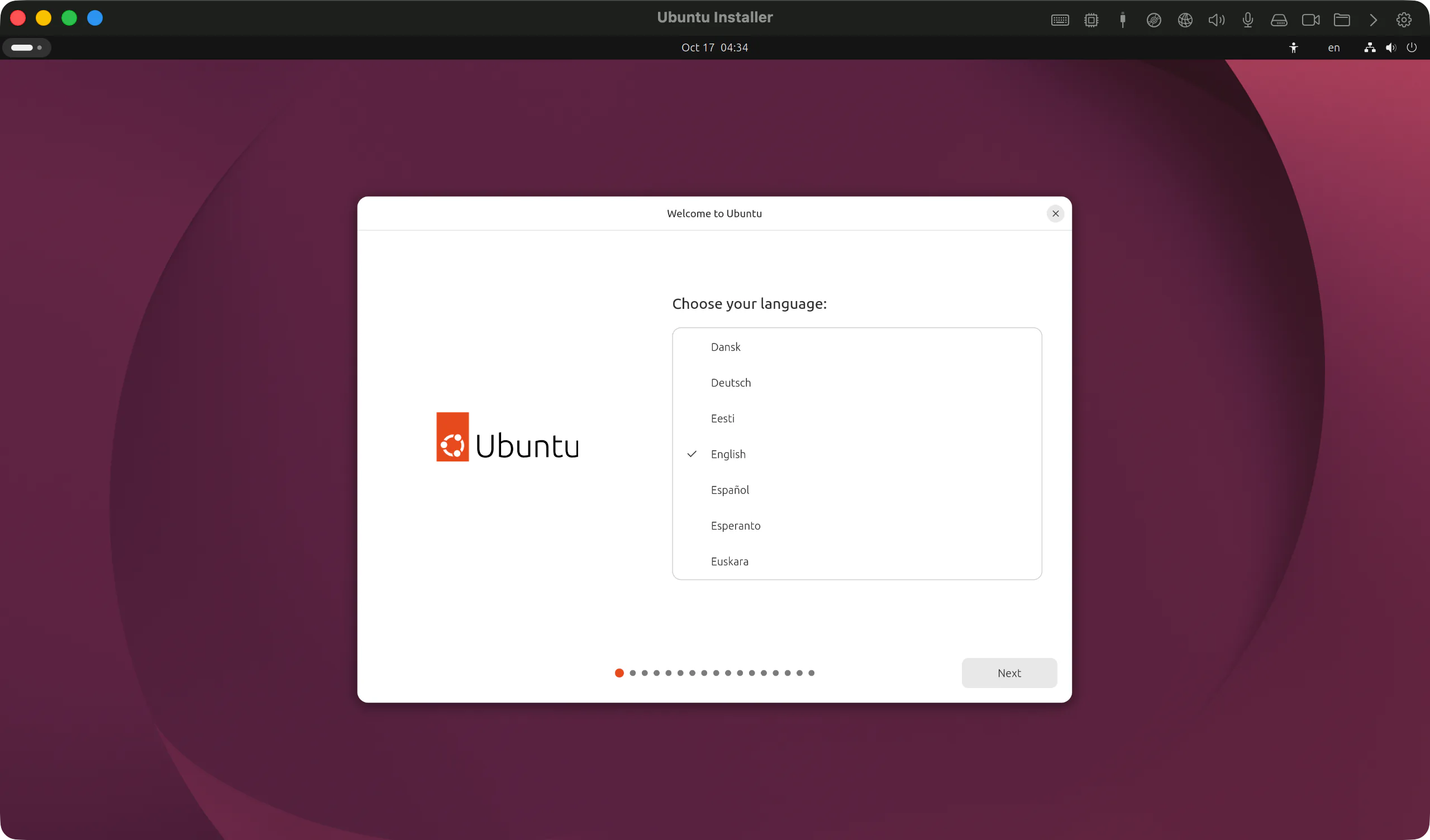
You go through the install steps yourself in the Ubuntu installer in the VM window.
How to create one
- 1.Click
New virtual machine, then openLinuxandUbuntuin that order underSystemand choose a version. - 2.Set the
Nameand the CPU, memory, and disk. If you're not sure, clickApply recommended settingson theHardwarescreen. - 3.Click
Create virtual machine. The app downloads and verifies the install image; progress shows on the VM card. - 4.Once the VM is created, click
Starton the card to open the VM window. - 5.Follow the Ubuntu installer's prompts to finish setup, then restart Ubuntu.
After it's installed
- 1.
Shut downthe VM, then clickEject install imageon the card. If the install image is still attached, the boot menu opens every time it starts. - 2.
Startthe VM again and sign in to Ubuntu. - 3.Click
Any OS Tools…on the card to install the tools. On Ubuntu it installs on its own with nothing more to click. - 4.When the notification
Restart Ubuntu to apply itappears, restart Ubuntu.
Without Any OS Tools, the Ubuntu screen is drawn in software instead of using the Mac GPU, so it's slow. See Any OS Tools for details.
Good to know
- An Ubuntu VM needs at least 1 CPU core, 2 GB of memory, and 16 GB of disk. The recommended values are 4 cores, 4 GB, and 32 GB.
If something goes wrong
If setup stalls, or it drops back to the installer screen after finishing, see The Ubuntu install gets stuck.
Related Articles
Was this article helpful?
Still stuck?
Search the Help Center by symptom or contact our support team.