
Uninstalling Any OS
Works onWindowsUbuntuUpdated 2026-10-16
In short
If you installed the Any OS helper, remove it from the app first, then delete your virtual machines, and move the app to the Trash. Virtual machine files are stored separately from the app, so you need to delete them yourself to reclaim the space.
Before you start
- Move any files you need out of the virtual machine and onto the Mac. Shared folders or shared clipboard make this easy.
- Shut down every running or suspended virtual machine.
1. Remove the Any OS helper
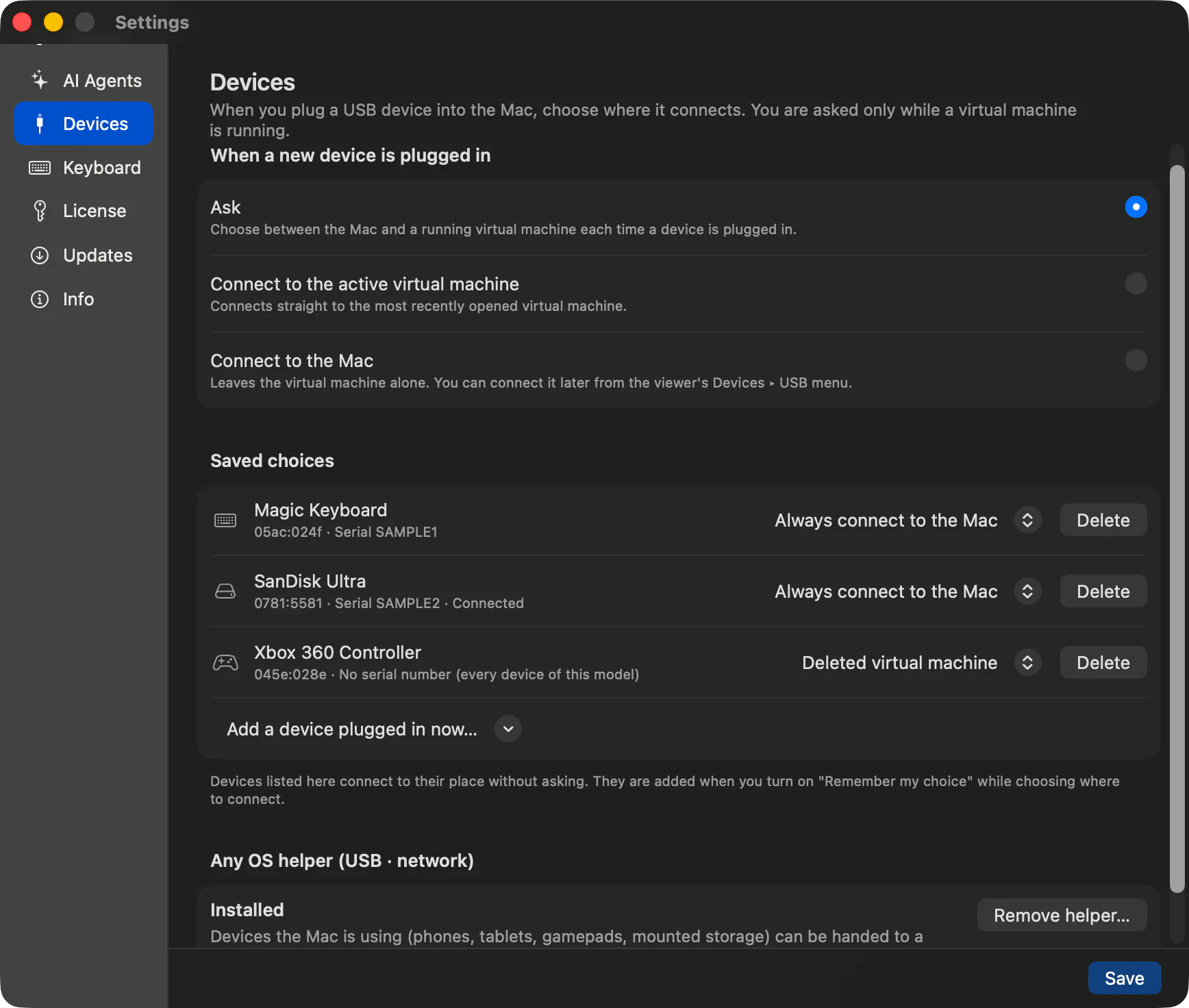
If you installed the helper for passing through USB devices or for bridged/Mac-only shared networking, remove it from the app before deleting the app. The helper is a single program shared by USB and networking.
- 1.Open app settings ›
Devicesin Any OS. - 2.If
Any OS helper (USB · network)showsInstalled, clickRemove helper…. - 3.Enter your macOS administrator password. You're done once the status changes to
Not installed.
2. Delete your virtual machines
- 1.Click
Settingson the VM card and open theGeneraltab. - 2.Type
Delete nowand clickDelete this virtual machine. A notification shows how much space was reclaimed. - 3.Repeat for each virtual machine.
A deleted virtual machine and its checkpoints can't be recovered.
3. Delete the app and any remaining files
- 1.Quit Any OS and move
Any OSin the Applications folder to the Trash. - 2.To remove leftover files, open
Go › Go to Folder…in Finder and check each of the locations below.
| Location | What's there |
|---|---|
~/Library/Application Support/Any OS | Virtual machine folders, downloaded Windows install images (media), and app settings |
~/Library/Caches/net.fullstackhub.anyos | Temporary storage for files received via the clipboard |
~/Applications/Any OS | Dock app shortcuts created in seamless mode |
Was this article helpful?
Still stuck?
Search the Help Center by symptom or contact our support team.