
Install the app
Works onWindowsUbuntuUpdated 2026-10-16
In short
Download Any OS and drop it into your Applications folder. That's the whole install. The virtualization engine and everything else it needs are bundled inside the app, so there's nothing else to set up.
Before you install
- Make sure you have an Apple Silicon Mac running macOS 26 or later.
- The app needs about 500 MB, plus tens of GB per VM. Windows 11 needs at least 64 GB, and Ubuntu needs at least 16 GB.
Installing
- 1.Download Any OS from the Download page.
- 2.Open the downloaded file and drag the
Any OSicon into theApplicationsfolder. - 3.Open Any OS from the
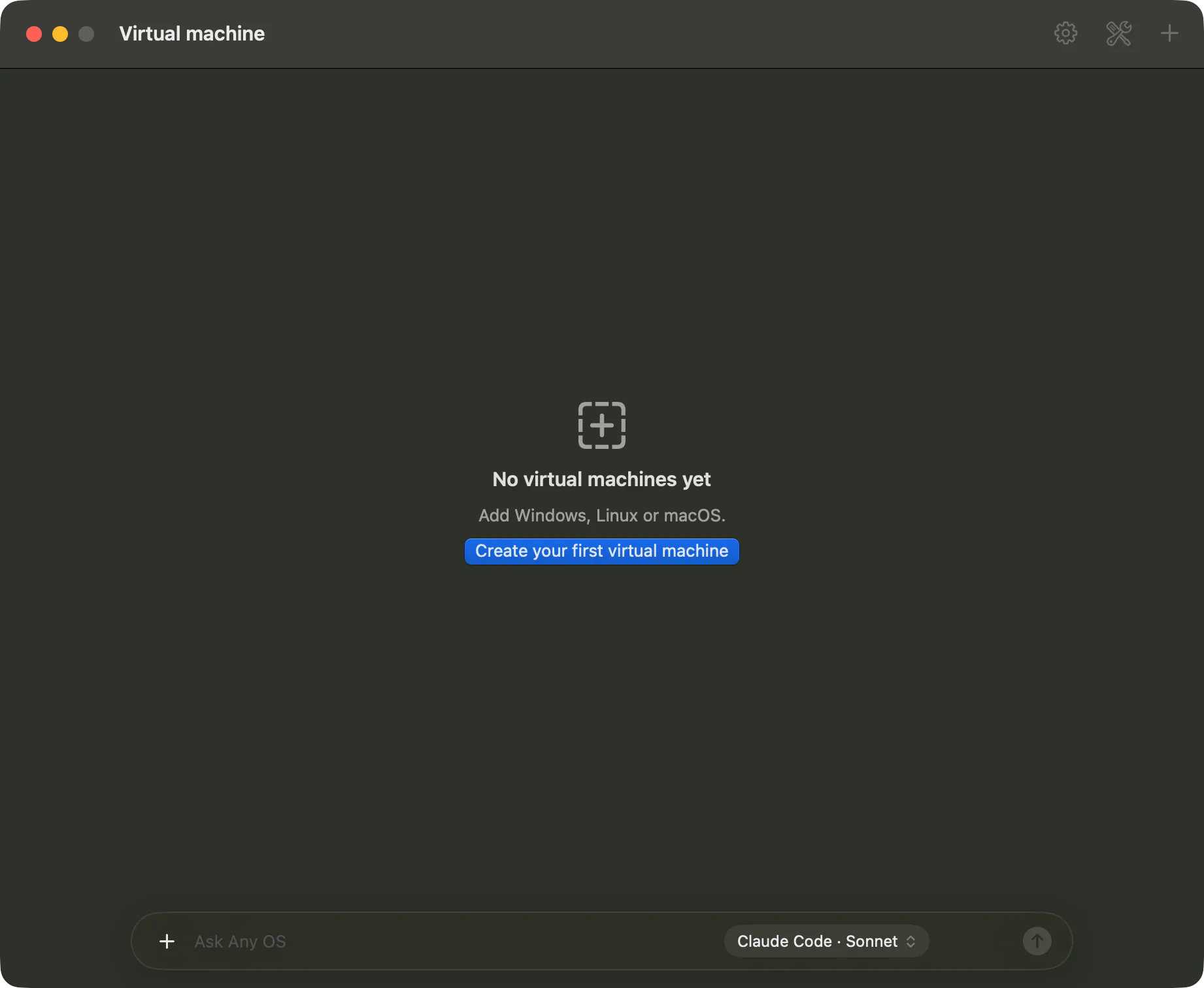
Applicationsfolder. - 4.On the first screen, click
Create your first virtual machineto create a VM.
Any OS helper (optional)
Any OS helper (USB · network) is an optional component needed for just two features. Skip it if you don't use them.
- When you hand a USB device the Mac is using (phone, tablet, gamepad, mounted storage) over to a VM
- When you use
BridgedorShared with the Mac onlynetworking
Install it from the Install helper… button in app settings › Devices, or from Install USB helper… (administrator password required) in the VM window's Devices › USB menu. macOS asks for the administrator password once during installation.
Good to know
- VM disks and settings are stored in your Mac's user library. Deleting the app leaves your VMs in place. See Uninstall the app for a complete removal.
- The app updates itself. See Update the app.
Related Articles
Was this article helpful?
Still stuck?
Search the Help Center by symptom or contact our support team.