
Any OS Tools
In short
Any OS Tools is a set of tools installed inside a VM. Every feature that connects the Mac and the VM. shared clipboard, shared folders, seamless mode, graphics acceleration. runs through Any OS Tools.
What needs it
| Feature | Windows | Ubuntu |
|---|---|---|
| Shared clipboard | Required | Required |
| Shared folders | Required | Required |
| Graphics acceleration | Required (includes the graphics driver) | Required |
| Seamless mode | Required | Required |
| Use All Displays | Required | Not supported |
Automatic resolution matching the window size works even without Any OS Tools.
A new Windows VM
A Windows VM set up automatically by Any OS installs Any OS Tools and the Any OS graphics driver together on the first sign-in. There's nothing extra to do.
Once it's installed, an Any OS Tools shortcut appears in Windows' Start menu and on the desktop. The notification area icon starts out in the hidden icons list.
Installing or updating
- 1.Start the VM. The button only appears while the VM is running.
- 2.Click
Any OS Tools…on the card. The button's label changes depending on the situation:Install Any OS Tools,Update Any OS Tools (current → new version), orReinstall Any OS Tools. - 3.Windows: click
Yesif a permission prompt (UAC) appears on the VM screen. Ubuntu: there's nothing to click. - 4.When it's done, the notification
Any OS Tools (version) installedappears. The install CD ejects automatically.
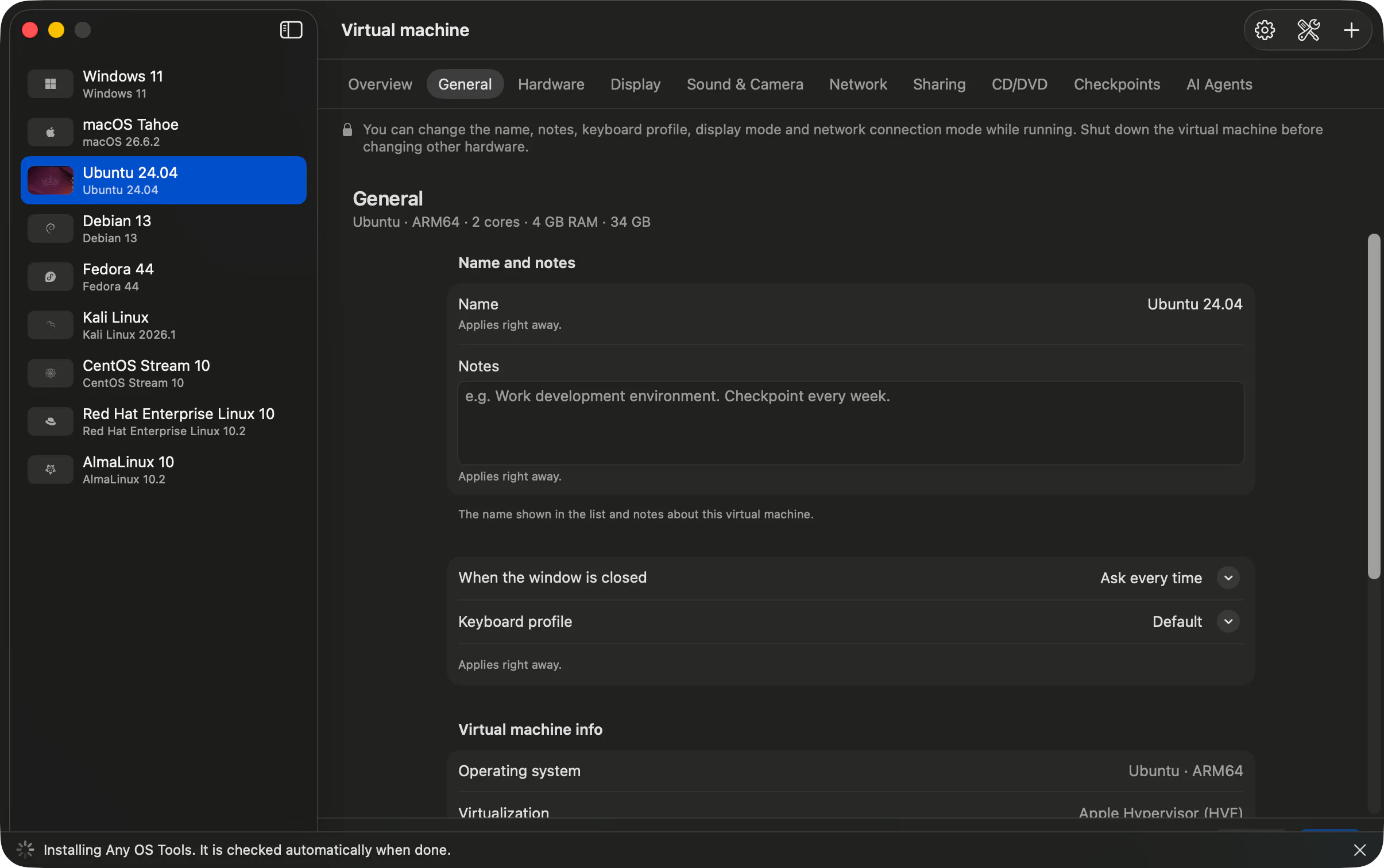
If the graphics driver changes too, you'll see the notification Restart Windows to apply it (or Restart Ubuntu to apply it on Ubuntu). Restart inside the VM when that happens.
Checking the installed version
While the VM is running, click Check status on the card to see the computer name · operating system · Any OS Tools (version). After you update the app, the Any OS Tools… button lets you know if an update is available.
If something goes wrong
- If you click
Noon the Windows permission prompt, the install CD stays attached. ClickAny OS Tools…again, or runInstall.ps1from the CD (usuallyD:\Install.ps1) as administrator inside Windows. The guest tools did not respond, so only the CD was inserted.. RunInstall.ps1from the CD as administrator inside the VM.The installation check timed out.. Confirm inside the VM that setup finished, then eject the CD underSettings›CD/DVD.
Related Articles
Still stuck?
Search the Help Center by symptom or contact our support team.